

Google Workspace sign-in
Cybex connects to Google Workspace in two ways. Both let people sign in to managed computers with their managed Google account; they differ in what happens at the login screen. Read Set up directory sign-in first if you have not chosen between them yet.
- Google Workspace shows a web address and a one-time code on the login screen. People finish signing in on a phone or another computer. Requires the GDM login screen, and every Blueprint on the Policy must have Allow Forge to build from source switched on.
- Google Workspace (password) lets people type their Google password directly at the login screen. Any login screen works, and it needs no source builds. It uses Google’s Secure LDAP service, which is not included in every Workspace edition.
Google Workspace with a sign-in code
Section titled “Google Workspace with a sign-in code”Create the Google client
Section titled “Create the Google client”- Open the Google Auth Platform and create or select a project owned by your Google Workspace organization.
- If this is a new Auth Platform app, select Get started. Enter a recognizable app name and monitored support and contact addresses.
- Set Audience to Internal, so only accounts in your Workspace organization can authorize the app. Keep access limited to the basic
openid,email, andprofileidentity scopes Cybex requests. - Open Clients, select Create client, and choose TVs and Limited Input devices as the application type.
- Name the client, create it, and immediately copy the Client ID and Client secret. Google shows a new client secret in full only when it is created; store it using your normal secret-management process.
See Google’s current Auth Platform setup, limited-input device flow, and client secret guidance.
Connect it to Cybex
Section titled “Connect it to Cybex”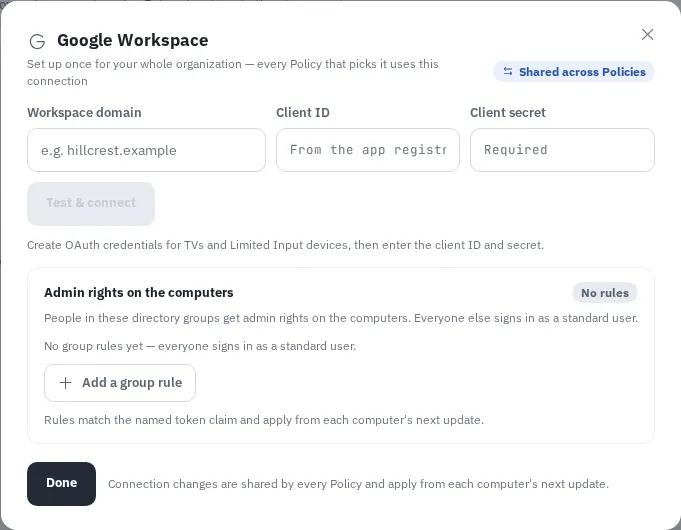
- In Cybex Manage, open Settings > Sign-in sources.
- Under Directory connections, find Google Workspace and select Connect.
- Enter the organization’s primary Workspace domain, then paste the Client ID and Client secret. The secret is encrypted before it is stored.
- Leave group rules under Admin rights on the computers empty unless your identity tokens contain a matching claim. Standard Google identity tokens do not include Workspace group membership, so a group rule usually matches nobody.
- Select Test & connect, open the displayed Google address and enter the one-time code on another device, then sign in with an account from the Workspace domain.
- Cybex reports which account signed in and the username it lands on at the computer. Select Done.
If Google blocks the test, confirm that the client type is TVs and Limited Input devices, that the app audience is correct, and that Workspace API controls permit the OAuth client. New Google client settings can take time to propagate.
Google Workspace with a password
Section titled “Google Workspace with a password”This method uses Google’s Secure LDAP service. The computer checks the password with Google directly, so no code and no browser are involved and every login screen works.
Before you start
Section titled “Before you start”- A Workspace edition that includes Secure LDAP. It is not part of Business Starter or Business Standard. Check your edition against Google’s LDAP client documentation.
- POSIX attributes on the accounts that will sign in. A computer needs a user number (
uidNumber), group number (gidNumber), home folder, and shell for each person. Google returns these only when they have been set on the account. The connection test in Cybex reports exactly which of them come back.
Create the LDAP client in Google Admin
Section titled “Create the LDAP client in Google Admin”- In the Google Admin console, open Apps > LDAP and select Add client.
- Name the client — for example
Cybex workstations— and continue. - Under Access permissions, allow Verify user credentials, Read user information, and Read group information for the whole domain or for the organizational units whose people sign in to managed computers.
- Continue, then Download certificate. The downloaded ZIP contains a
.crtand a.keyfile; store them with your normal secret-management process. - Open the client’s details and set its service status to On.
Google’s own instructions are in Connect LDAP clients to the Secure LDAP service. New LDAP clients can take time to become usable.
Connect it to Cybex
Section titled “Connect it to Cybex”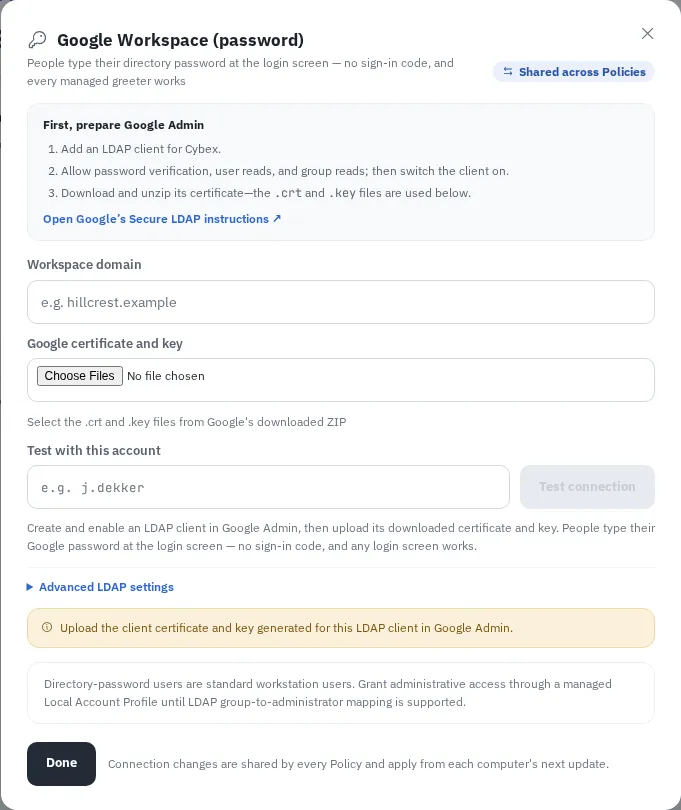
- In Cybex Manage, open Settings > Sign-in sources.
- Under Directory connections, find Google Workspace (password) and select Connect.
- Enter the Workspace domain. Cybex fills in Google’s directory address and the matching search base from it.
- Under Google certificate and key, select both the
.crtand the.keyfile from the ZIP Google produced. - In Test with this account, enter the username of a directory account to look up — the part of the address before the
@. - Select Test connection. Cybex saves the connection when the account is found.
Advanced LDAP settings hold the directory address, search base, directory layout, and a bind account. Google’s normal values are filled in automatically; change them only for an existing custom LDAPS deployment of your own.
Read the test result
Section titled “Read the test result”The test does more than confirm the password: it shows what the computer will receive for that person.
- Username, Home folder, and Shell are the values the account gets on the computer.
- User number and Group number are highlighted when the directory does not return them. Without them a computer cannot create the account, and sign-in will fail — set the POSIX attributes on the account in Google and test again.
- A warning appears when the directory cannot be searched by user number. Sign-in still works, but file listings and
idmay show raw numbers instead of names for people who have not signed in on that computer yet.
If the test fails, Cybex names the likely cause — a wrong search base, a rejected certificate, or an account that does not exist. Connect without testing saves the connection unverified.